

YOUR CART IS CURRENTLY EMPTY
How do I convert mm to pixels for print artwork?
Why can't I just convert mm to pixels?
A millimetre is a fixed length, but a pixel isn't. How big a pixel prints depends on the resolution, measured in pixels per inch (ppi). So you always need three things: the size in mm, the resolution in ppi, and the formula that joins them.
For our printing, images should be at least 150ppi at the finished size, and 75ppi is the lowest we accept. For small prints like flyers, aim for 300ppi, which Adobe recommends for the best print quality.
What's the formula?
There are exactly 25.4mm in an inch. So:
Pixels = mm ÷ 25.4 x ppi
For example, an A4 page is 210mm wide. At 300ppi, that's 210 ÷ 25.4 x 300 = 2480 pixels.
To go the other way and see how big an image will print: mm = pixels ÷ ppi x 25.4.
Note: As a quick guide, 1mm is about 12 pixels at 300ppi, and about 6 pixels at 150ppi.
Why does my image say 72ppi?
Images made for screens are often saved at 72ppi, which Adobe gives as the setting for web and screen designs. That number on its own doesn't tell you much. The resolution doesn't change the image data, it only sets how big those pixels print. What matters is how many pixels the image has, compared with the size you want to print it.
For example, a 3000 x 2000 pixel photo marked 72ppi would print about 1058mm wide at that setting. Printed 254mm wide, the same pixels give you 300ppi.
Quick table: common print sizes in pixels
| Size | mm (w x h) | At 75ppi | At 150ppi | At 300ppi |
|---|---|---|---|---|
| A4 flyer | 210 x 297 | 620 x 877 | 1240 x 1754 | 2480 x 3508 |
| Premier pull-up banner, 850mm (bleed included) | 850 x 2030 | below this template's 150ppi minimum | 5020 x 11988 | not needed |
| Big Mural 3x3 (2.25m frame) with end caps (bleed included) | 2960 x 2300 | 8740 x 6791 | 17480 x 13583 | not needed |
For big graphics like the Premier pull-up banner and the Big Mural display wall, 150ppi at finished size is what we ask for, so you don't need 300ppi. Always check the product template too: the Premier 850 template asks for a minimum of 150ppi at 100%. If a file gets too big to handle, you can set it up at a proportional size, but then the resolution goes up to match. At 50% scale, an image needs 300ppi in your file to print at 150ppi at full size.
Steps to check an image in Photoshop
1. Open the image. In the main menu, go to Image > Image Size.
2. Deselect Resample, so Photoshop doesn't add or remove any pixels.
3. Choose Millimeters from the unit menu next to Width, then type the finished width of your print. Photoshop works out the Resolution for you.
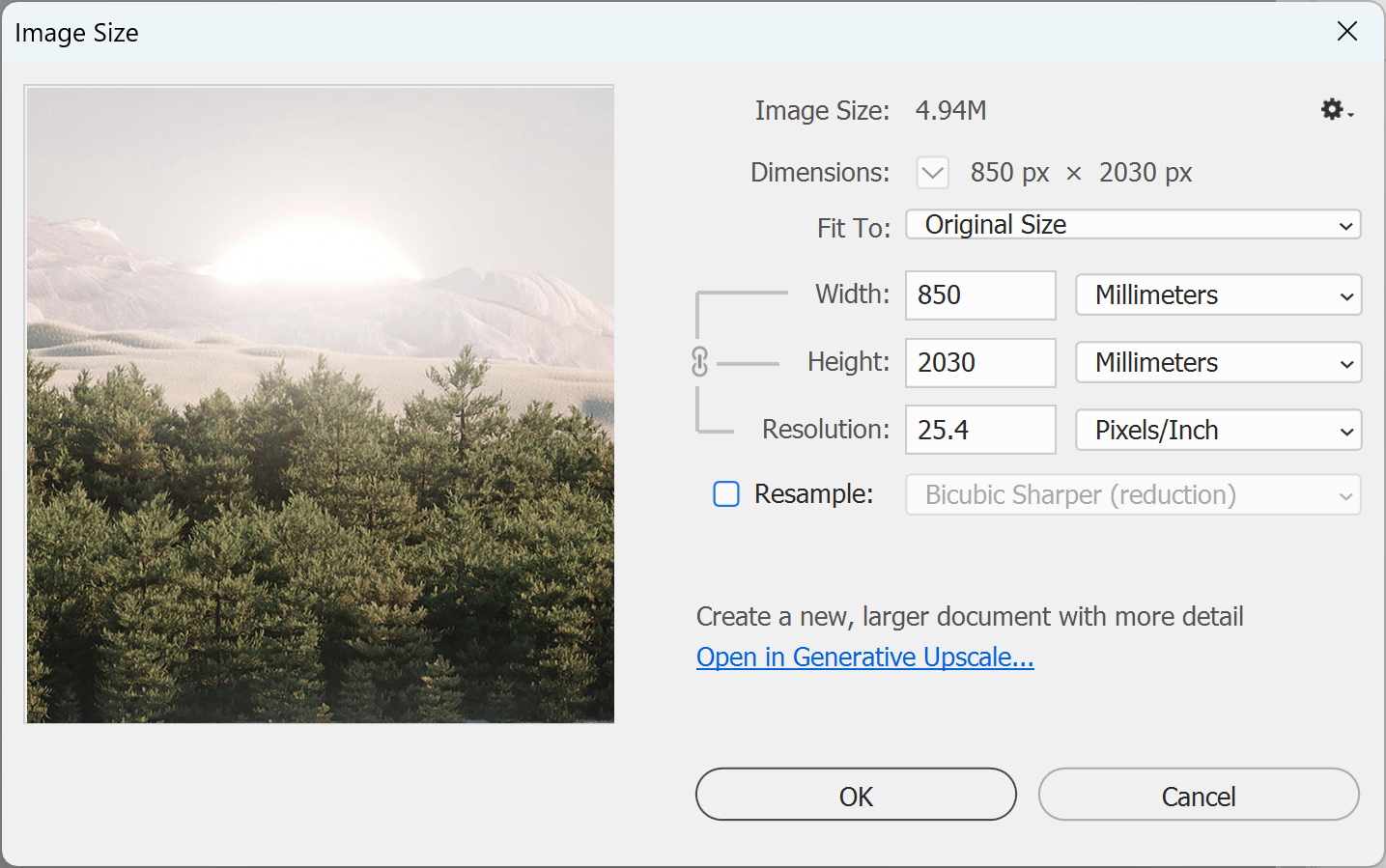
4. Read the Resolution. At 150ppi or more, the image is good at that size. Between 75 and 150ppi, we can accept it, but 150ppi gives the best result. Some templates, such as the Premier 850, ask for at least 150ppi, so check yours. Under 75ppi, it's too small, so find a bigger original or use the image smaller in your design.
IMPORTANT: Turning Resample on and typing a bigger number doesn't add real detail. Photoshop has to estimate the new pixels, which can make the image soft.
Steps to set up a new file at the right size
1. In Photoshop, in the main menu, go to File > New.
2. In the New Document dialog, select the Print tab. In the Preset Details panel, choose Pixels from the units menu and type the width and height from the table (or the formula). Set the Resolution to the ppi you used, and set Color Mode to CMYK Color for print. Click Create.
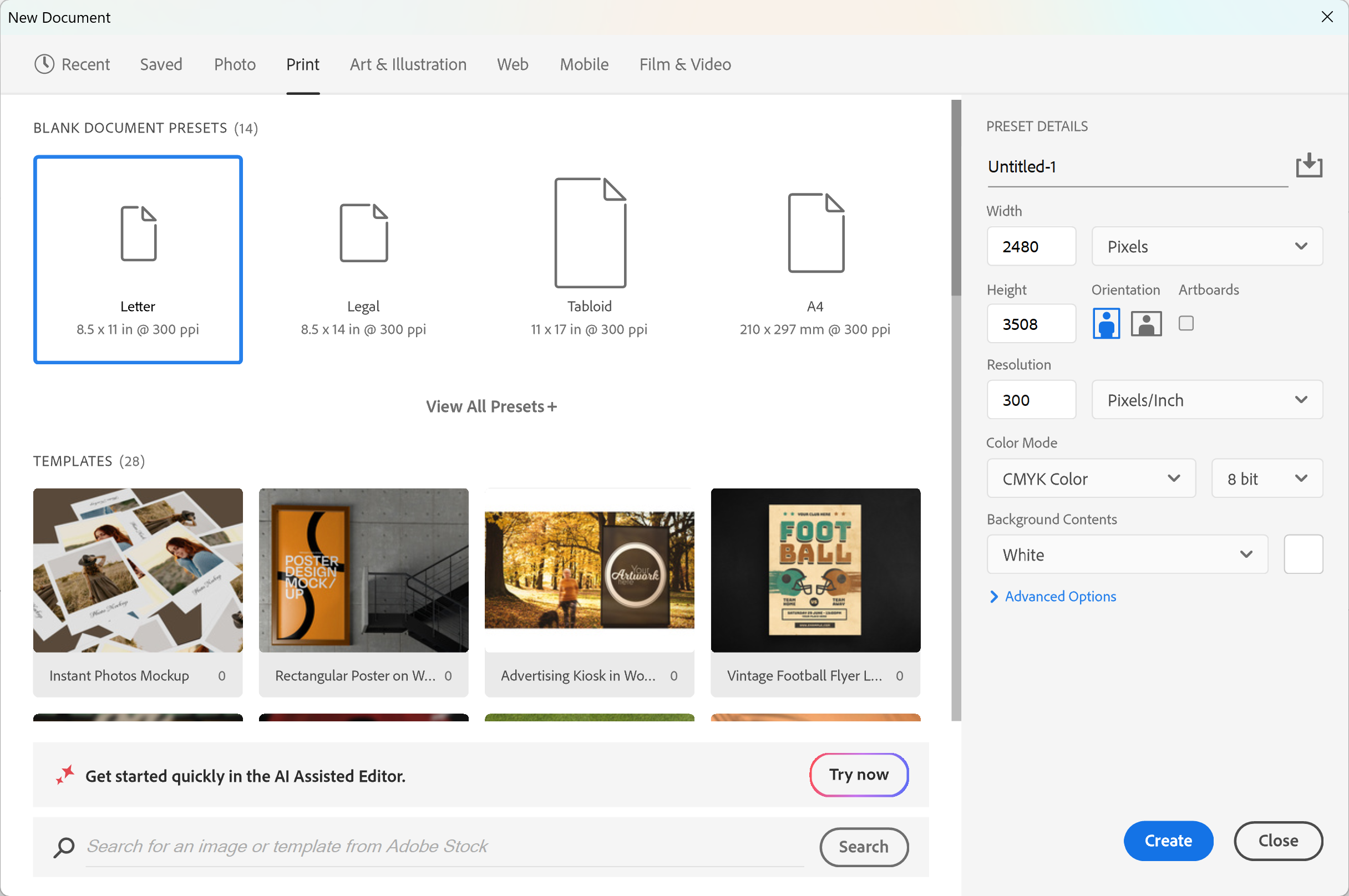
3. Finally, add bleed if your size doesn't include it yet. The Premier and Big Mural sizes in the table already include bleed, so don't add more. For other sizes, our artwork specifications ask for 10mm on every edge unless the product template says otherwise: go to Image > Canvas Size, tick Relative and add 20mm to the Width and Height. You're done!
Designing in Canva? Canva isn't suited to preparing wide format print files, so talk to us before you send it.
Need some help?
We're here for you
If you're needing some advice or just a helping hand, please get in touch with our team, by clicking this button. Complete the enquiry form and one of our specialists will call you back as soon as we can.