

YOUR CART IS CURRENTLY EMPTY
How to convert spot colours to CMYK?
If you are unsure how a colour will convert, send us the file before it prints. Our graphics and design team can check it, and our artwork specifications cover the formats we accept.
What is the difference between spot colour and CMYK?
Spot colour is a single mix of ink used in printing, rather than using a combination of ink colours to achieve the desired colour output. The use of spot colours is far less common these days due to the cost-effectiveness of digital printing, and also because of the excellent colour reproduction that can be achieved using digital CMYK printing.
CMYK or Process Colour printing is a system where four different coloured inks - cyan, magenta, yellow and black - are combined to achieve the final result. Most people would be familiar with this system through their use of home desktop colour printers.
Why do I need to convert spot colours to CMYK?
When preparing a Print Ready PDF, the file must only contain the four CMYK separations. If there is any artwork set to a Spot Colour, the PDF will contain an extra separation for that colour. Spot colours left in a file are converted to CMYK during printing, and the result is unreliable. The exceptions are dielines, which are purposely set to Spot Colour to prevent them from printing, and white ink layers for clear or coloured stock, which stay a spot colour so the printer knows where to lay white.
Converting spot colour to CMYK in Adobe Illustrator
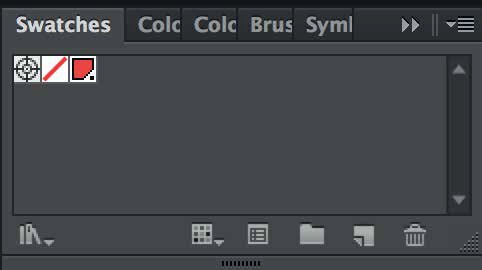
1. Open the Swatches panel.
In the main menu, go to Window > Swatches.
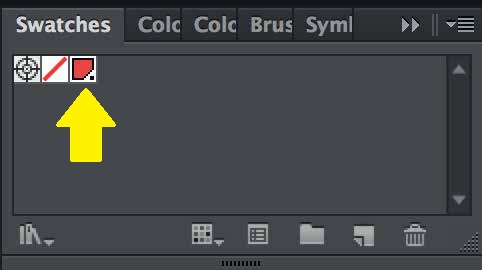
2. Double click on the swatch with the dot in the bottom right corner.
This dot indicates that it is a Spot Colour.
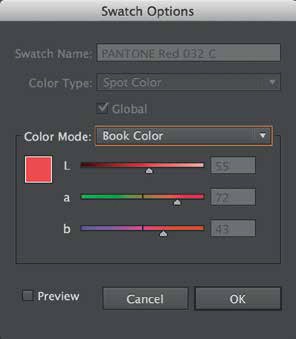
3. Double-clicking will bring up the Swatch Options dialog box.
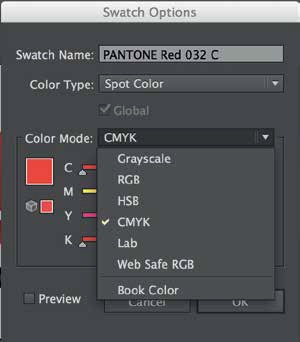
4. Click the Color Mode drop-down and change it to CMYK.
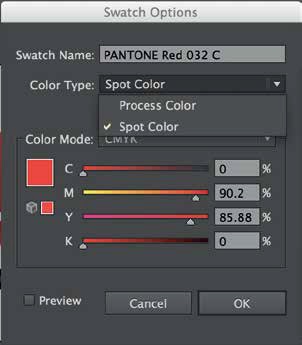
5. Click the Color Type drop-down and change it to Process Color.
6. The Swatch Name can be left as the Pantone Colour for a reference, or the name can be changed to the CMYK breakdown, as long as the swatch has been converted to CMYK.
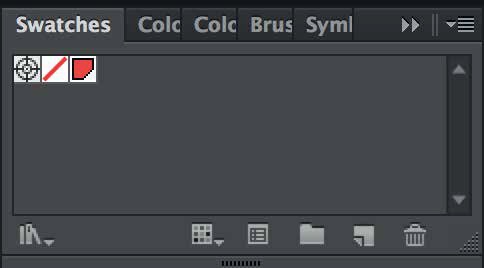
7. Press OK. The dot in the bottom right corner of the Swatch will no longer be there. This is confirmation the colour has changed from a Spot Colour to CMYK. Repeat steps 2 to 7 for every swatch that still shows a dot, except a dieline or a white ink swatch.
Need some help?
We're here for you
If you're needing some advice or just a helping hand, please get in touch with our team, by clicking this button. Complete the enquiry form and one of our specialists will call you back as soon as we can.