

YOUR CART IS CURRENTLY EMPTY
How do I set up very large artwork in Illustrator, InDesign or Photoshop?
What is the largest size I can set up?
Each program has its own ceiling, and wall graphics often go past it:
| Program | Largest size | In millimetres |
|---|---|---|
| Illustrator (default canvas) | 227 inches per artboard side | about 5,766mm |
| InDesign | 216 x 216 inches per page | about 5,486mm |
| Photoshop | 300,000 x 300,000 pixels | depends on resolution |
A 6m wide SuperWall is 6,000mm before you add bleed, so it won't fit on a single InDesign page or a default Illustrator artboard at full size.
Illustrator can go bigger. If you enter a width or height greater than 227 inches, it switches to a large canvas of 2270 x 2270 inches. But a large canvas file carries a scale, and if the app opening it can't read that scale, the artwork appears ten times smaller.
Why work at 1:10 scale?
Our artwork specifications ask for a PDF set up at 100% of finished size, or in proportion, with bleed included. Working at 10% (1:10) keeps big wall graphics manageable and works the same way in all three programs. Everything scales together: page size, bleed and image resolution.
At 10% scale, an image needs 1,500ppi in the file to print at 150ppi at full size (150 x 10 = 1,500). The lowest we accept is 75ppi at 100% of finished size, so never go below 750ppi at 10%.
Steps to set up large artwork at 1:10 scale
1. Work out the finished size plus bleed. Use the size on your product's template, which always overrides our default. Without a template, allow 10mm bleed on every edge. For a 6,000 x 2,250mm graphic, that's 6,020 x 2,270mm.
2. Divide every measurement by 10. The example becomes a 602 x 227mm page with 1mm bleed. Illustrator and InDesign set bleed separately, so there you enter the trim size (600 x 225mm) as the page and 1mm as the bleed.
3. In Illustrator, go to File > New. In the Preset Details pane, set the units to Millimeters, then enter the Width, Height and Bleed. Under Advanced Options, set Color Mode to CMYK Color and click Create. If you use effects such as drop shadows or blurs, go to Effect > Document Raster Effects Settings and set Resolution to Other: 1500ppi, because the usual 300ppi is only 30ppi at full size.
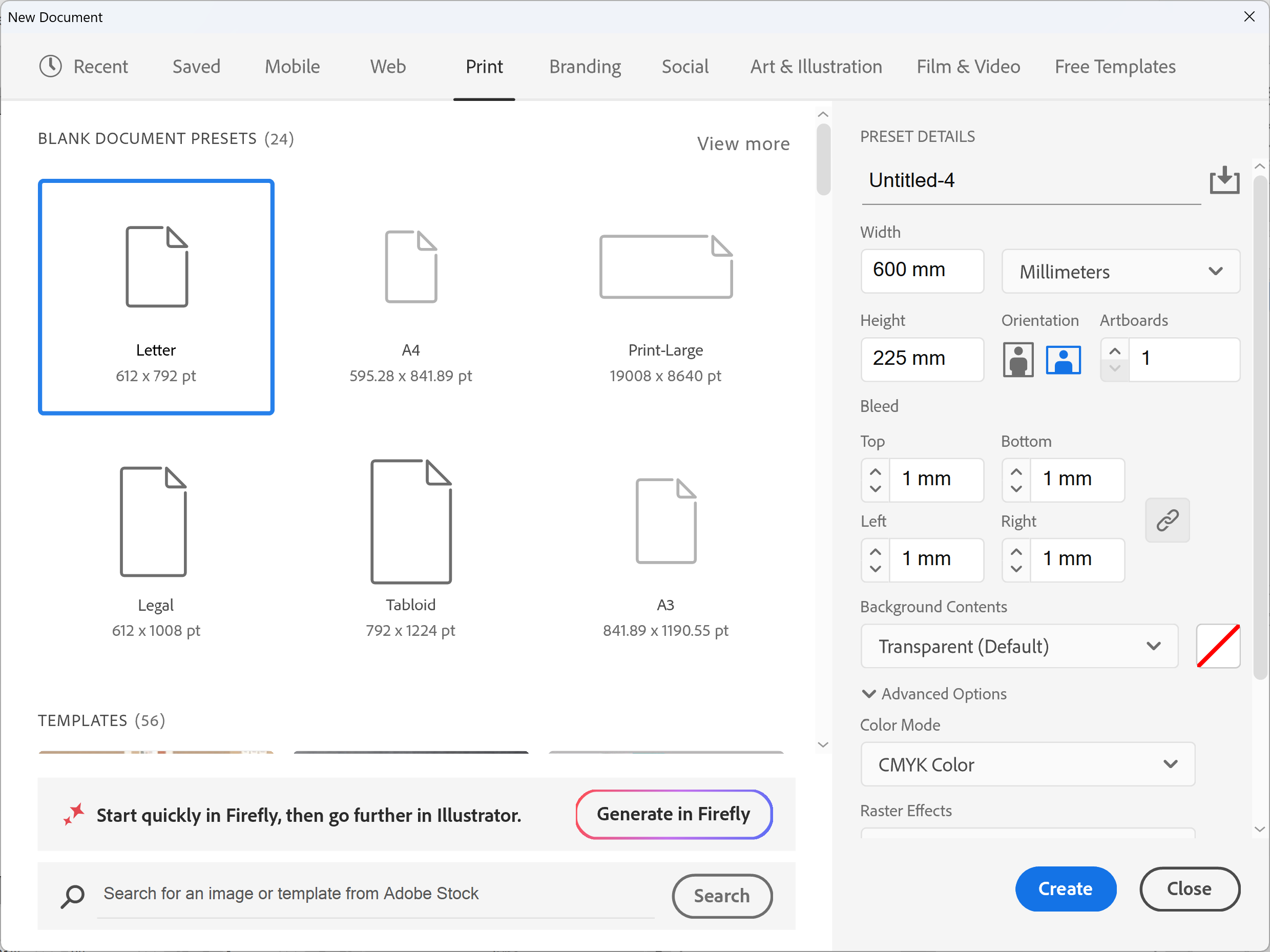
IMPORTANT: Don't type the full size in Illustrator. Anything over 227 inches makes Illustrator create a large canvas, and a warning sign appears next to the Create button.
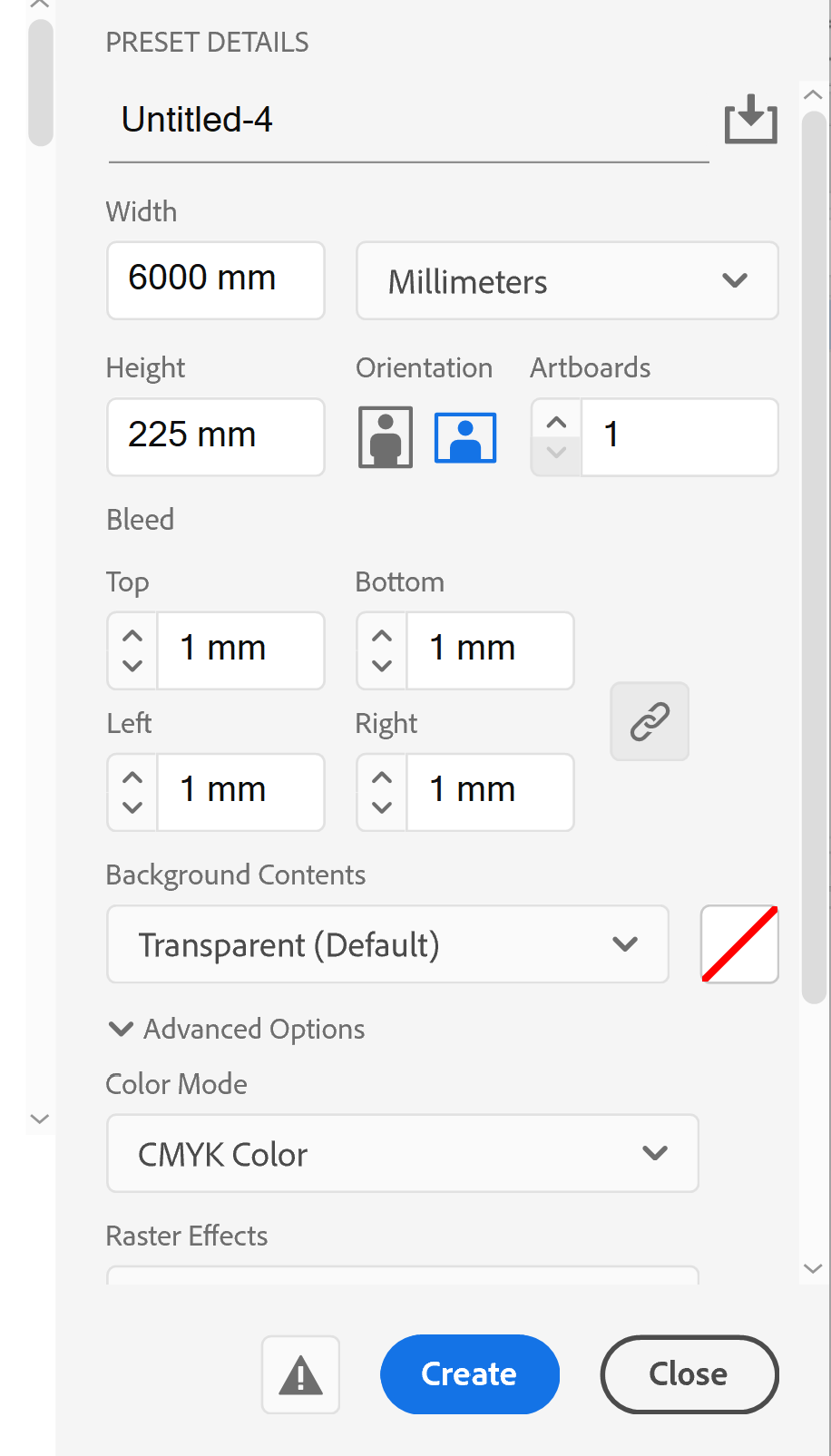
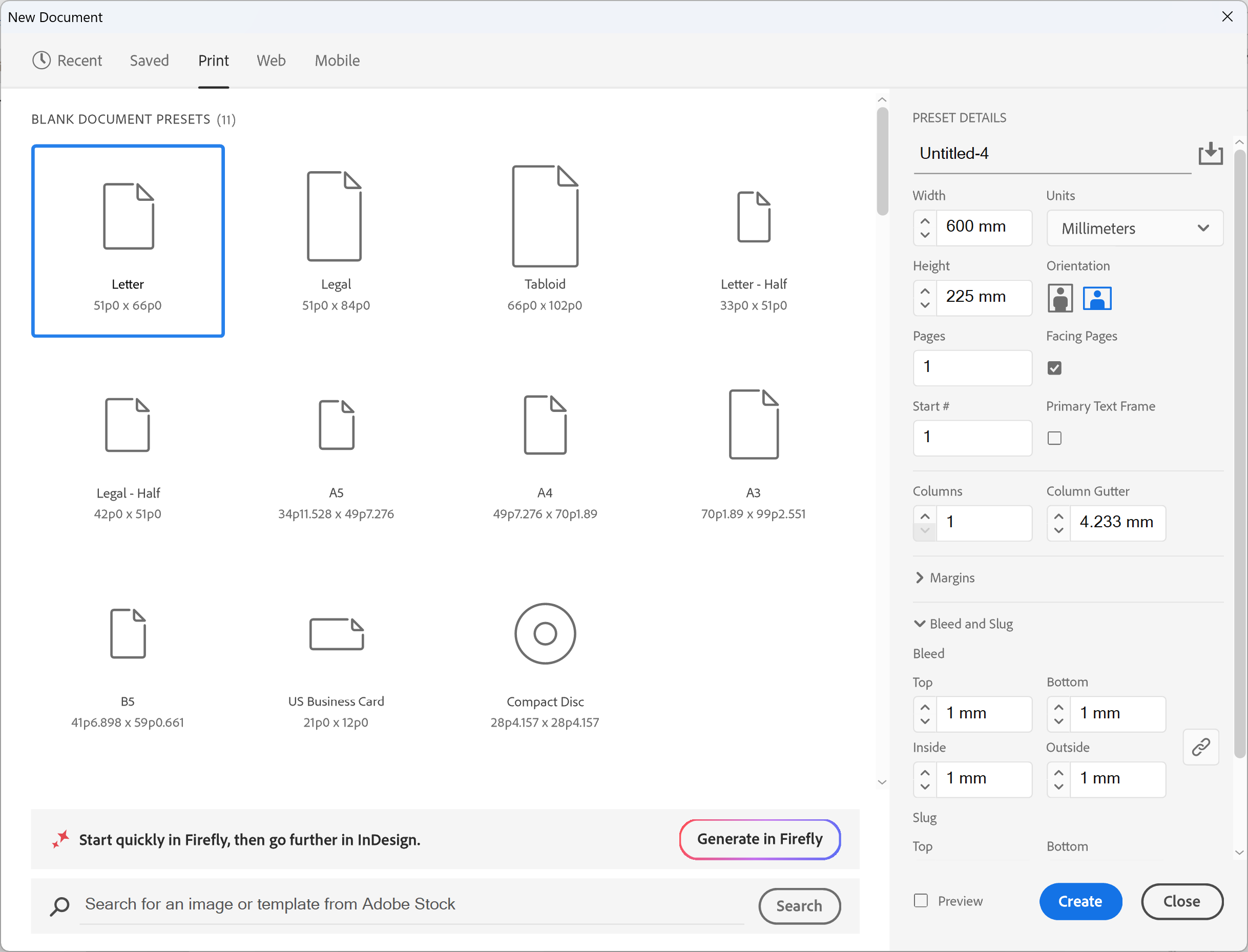
4. In InDesign, go to File > New > Document and select the Print tab. In the Preset Details panel, set the units to Millimeters, enter the Width and Height, then expand Bleed and Slug and set Bleed to 1mm on all sides. Click Create.
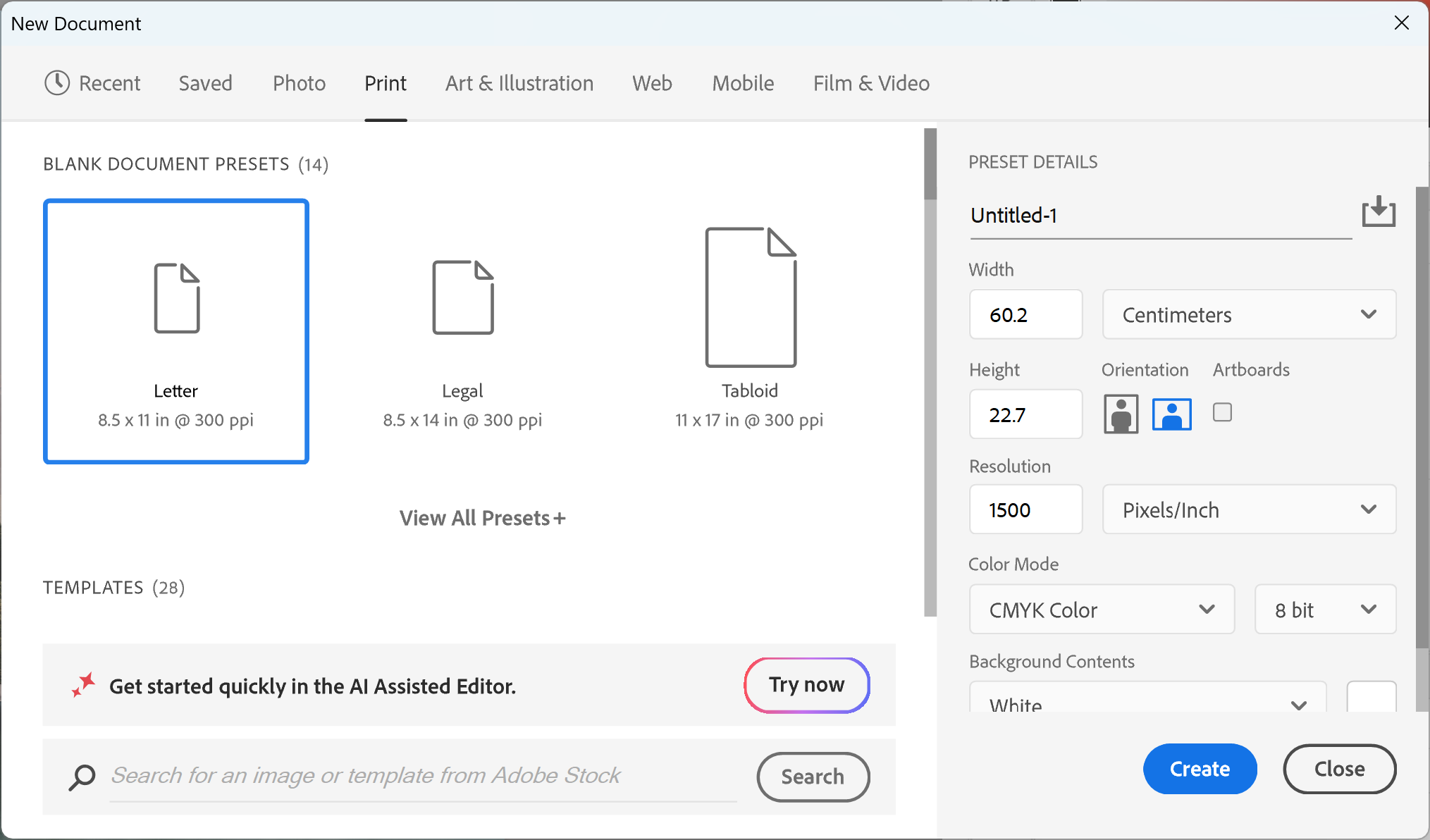
5. In Photoshop, go to File > New and select the Print tab. The New Document dialog has no bleed field, so enter the size including bleed: set the unit to Centimeters, Width 60.2 and Height 22.7. Set Resolution to 1500 Pixels/Inch and Color Mode to CMYK Color, then click Create.
Note: That file is about 35,500 pixels wide. Scaling down doesn't reduce the pixels you need, it only changes the ppi number.
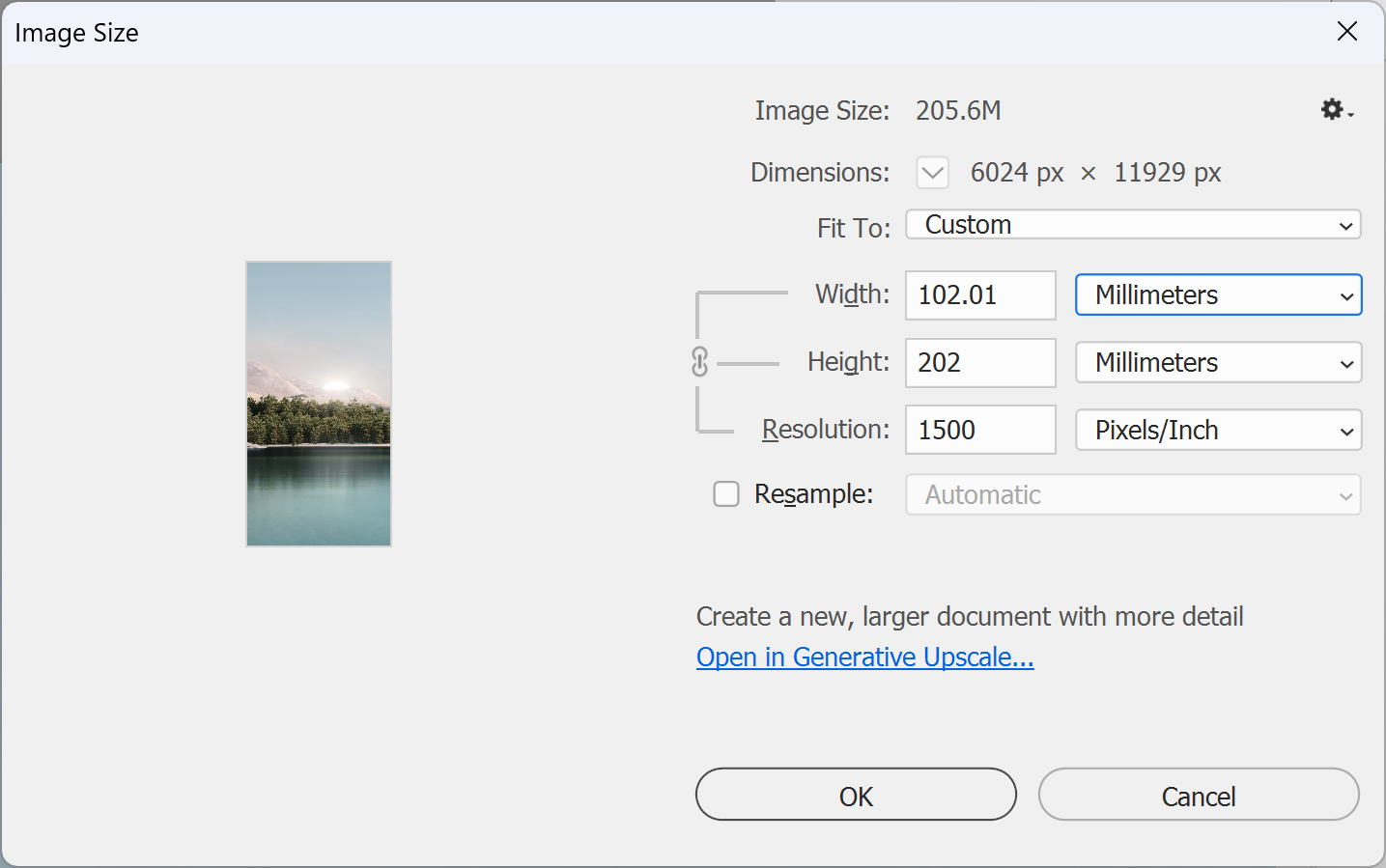
6. Check each photo before you place it. In Photoshop, go to Image > Image Size. Untick Resample, set the Width to the size the photo will appear at 10% scale and read the Resolution. Aim for 1,500ppi, and no less than 750.
7. Save big Photoshop files in the right format. Adobe says to use special formats for images over 30,000 pixels in width or height, or over 2GB: go to File > Save As and choose Large Document Format (*.PSB) as your working file.
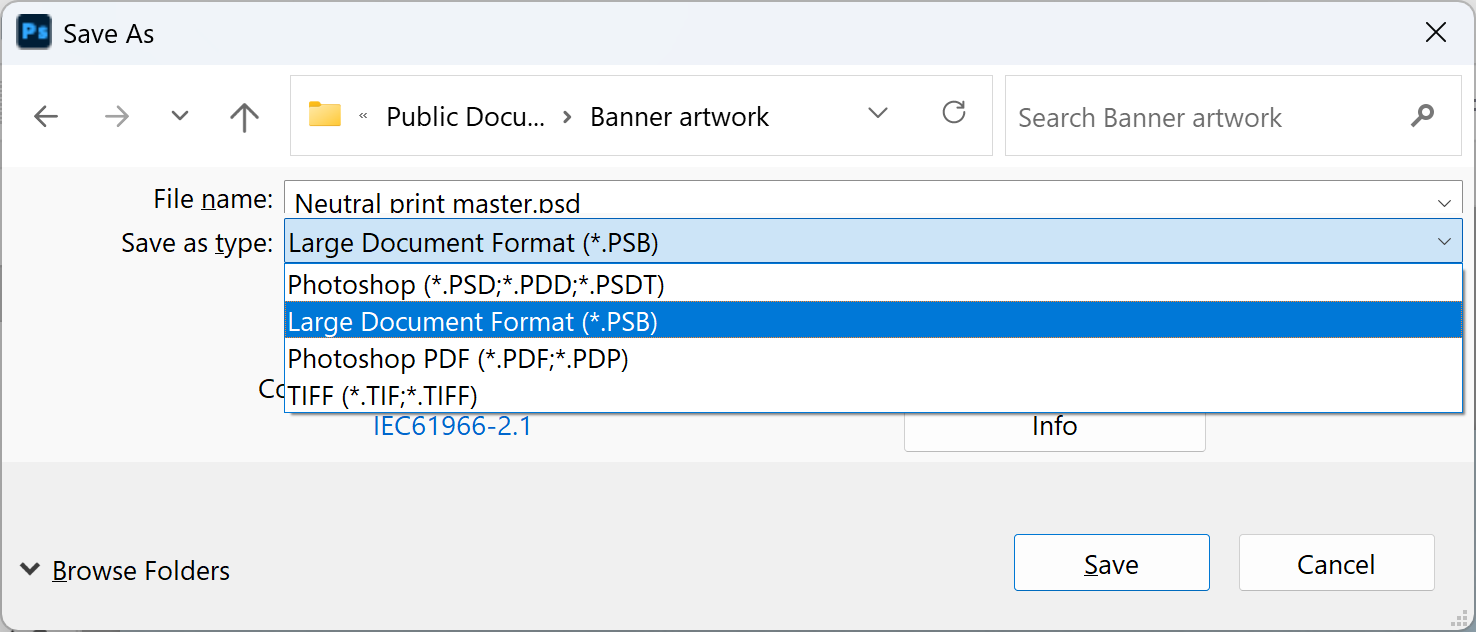
Note: PSB isn't one of the file types we accept. Keep it as your working file, place the image into your InDesign or Illustrator layout, and make the PDF there.
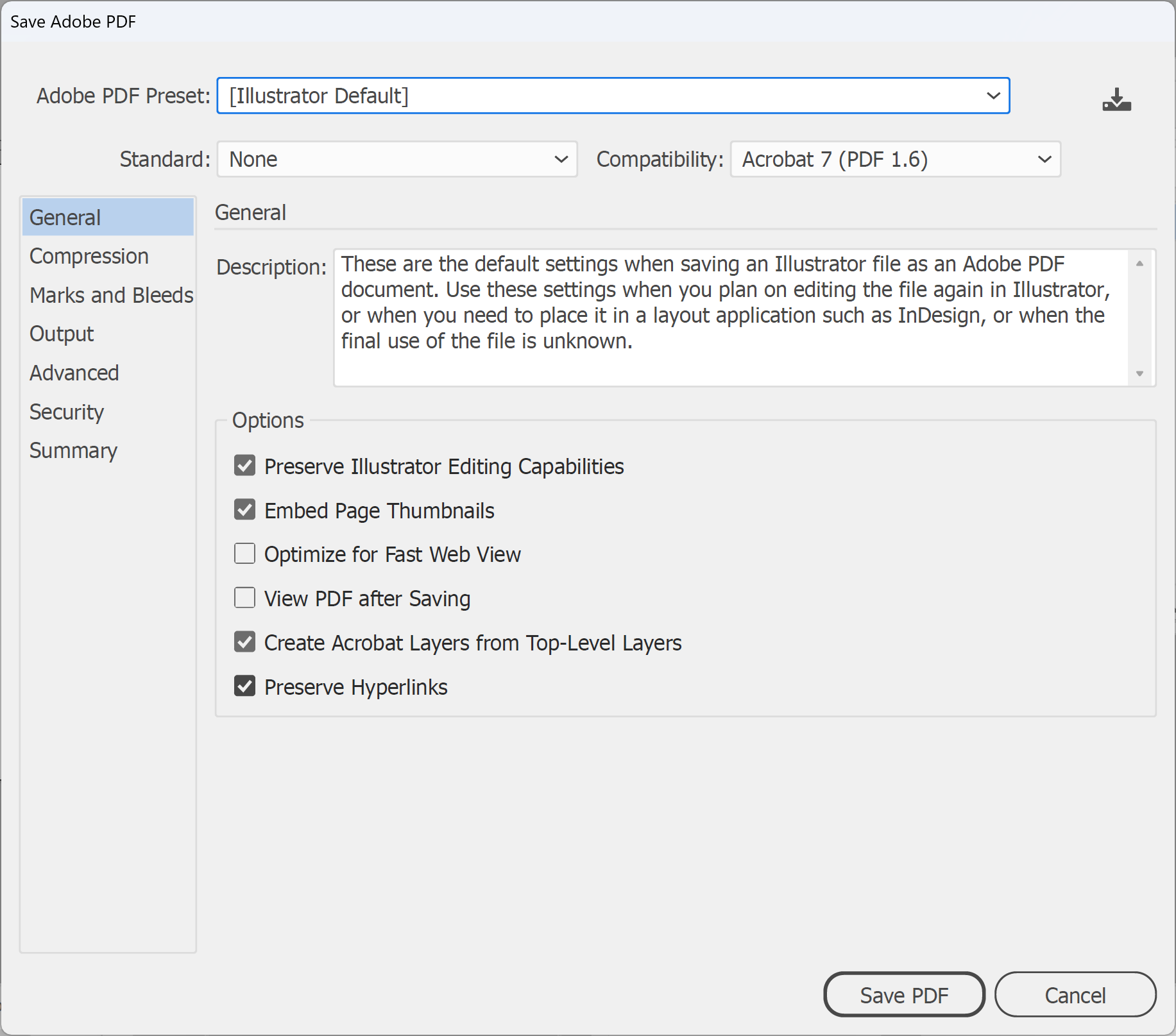
8. Finally, save a PDF and say it's at 10%. In the PDF dialog box, select Compression and set the image settings to Do Not Downsample. Presets such as [Press Quality] reduce images over 450ppi to 300ppi, which is only 30ppi at full size. Put the scale in the file name, for example "superwall-6m-10pc.pdf", and in your email to us. Send it to sales@displays2go.com.au, or see sending artwork if it's too big to email. You're done!
Note: If you used an Illustrator large canvas instead, save the PDF with Compatibility set to Acrobat 7 (PDF 1.6) or later. Adobe says large canvas artwork saved as PDF 1.5 or below opens ten times smaller.
Need some help?
We're here for you
If you're needing some advice or just a helping hand, please get in touch with our team, by clicking this button. Complete the enquiry form and one of our specialists will call you back as soon as we can.