

YOUR CART IS CURRENTLY EMPTY
How do I embed fonts in a PDF?
What does embedding fonts mean?
Embedding a font means saving the font data inside the PDF, so the exact font you designed with is there when the file is opened or printed. It doesn't have to be the whole font. A subset holds only the characters your document uses, and that counts as embedded too.
Why do I need to embed fonts?
If a font isn't in the PDF and the computer that opens it doesn't have that font, a substitute font is used instead. A substitute can't always match the shape of the original characters, especially with script fonts, so headlines and logos set in type can print looking wrong.
That's why we need all text and fonts outlined or embedded, so nothing reflows on our machines and there are no unexpected print results. Some of our product templates go further and ask for all fonts converted to outlines, so always follow the template for your product. Our guide on how to outline text covers that.
Should I embed or outline my fonts?
Either works for print, as long as the template doesn't ask for outlines. Embedding keeps the words as live text in the PDF, so they can still be selected and searched. Outlining turns each letter into a shape, so there's no font left to go missing, but the words can no longer be edited as text.
Embedding also means you don't need to send anyone your font files. Adobe says that if you give a client documents with properly embedded font data, such as PDFs, they don't need their own licence for an Adobe Fonts font. If they need to edit the design and use the font directly, they do. Fonts installed on your computer from other sources have their own licence terms, so check those.
Steps to embed fonts when you export a PDF from InDesign
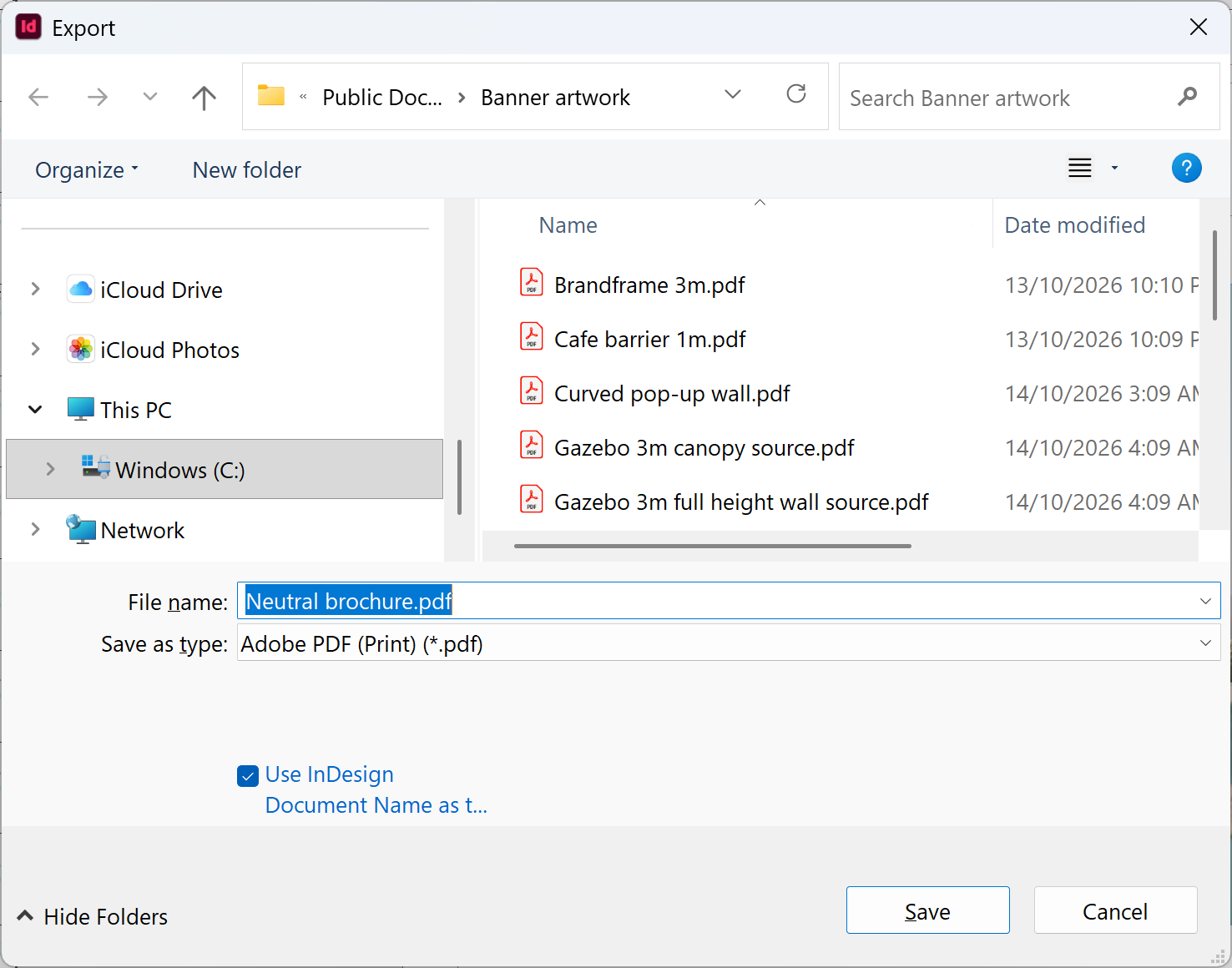
1. In the main menu, go to File > Export. Choose a file name and location, select Adobe PDF (Print) for Save As Type (Windows) or Format (macOS), then click Save.
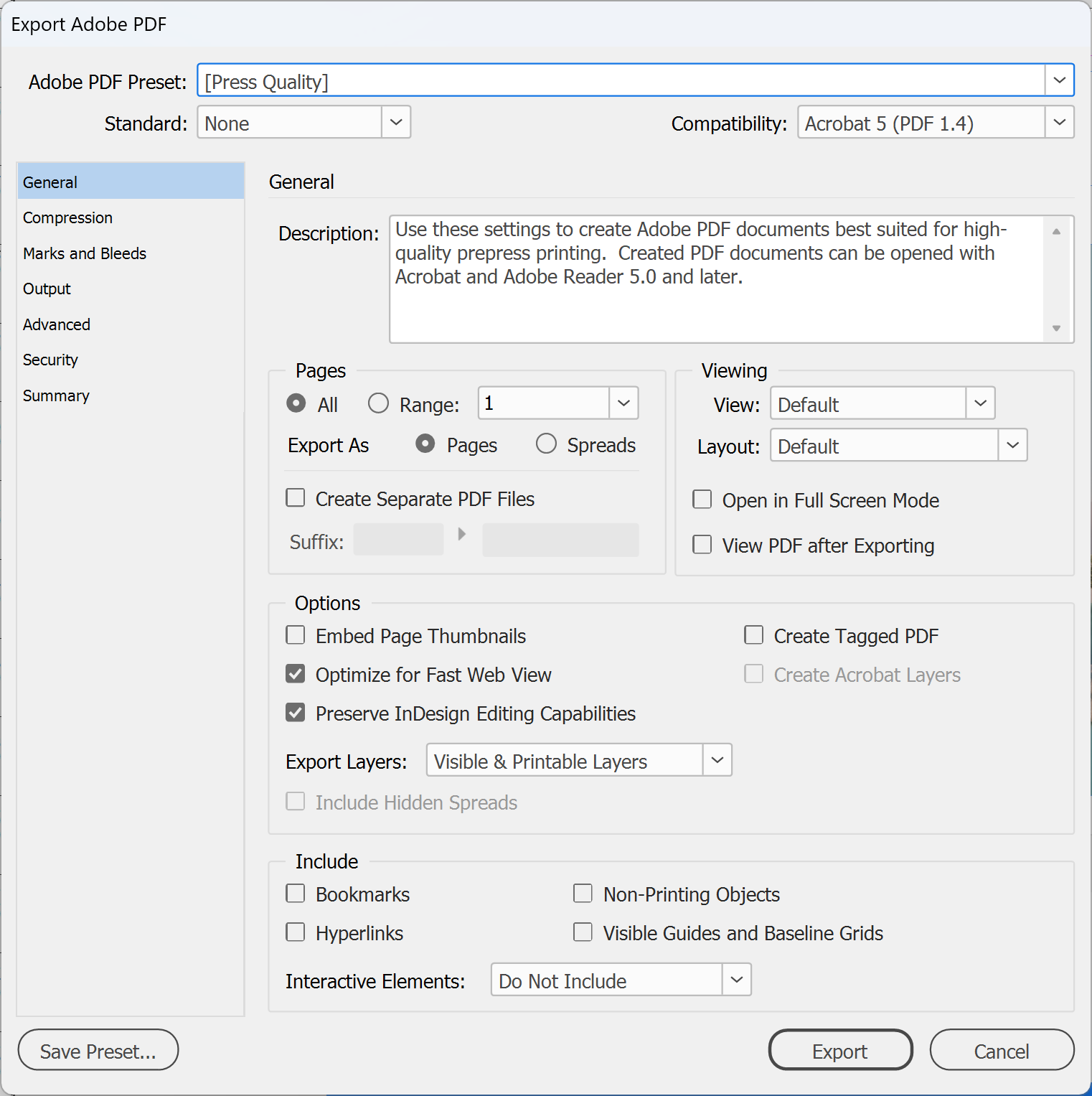
2. In the Export Adobe PDF dialog box, choose [Press Quality] from the Adobe PDF Preset menu. This preset embeds subsets of all fonts.
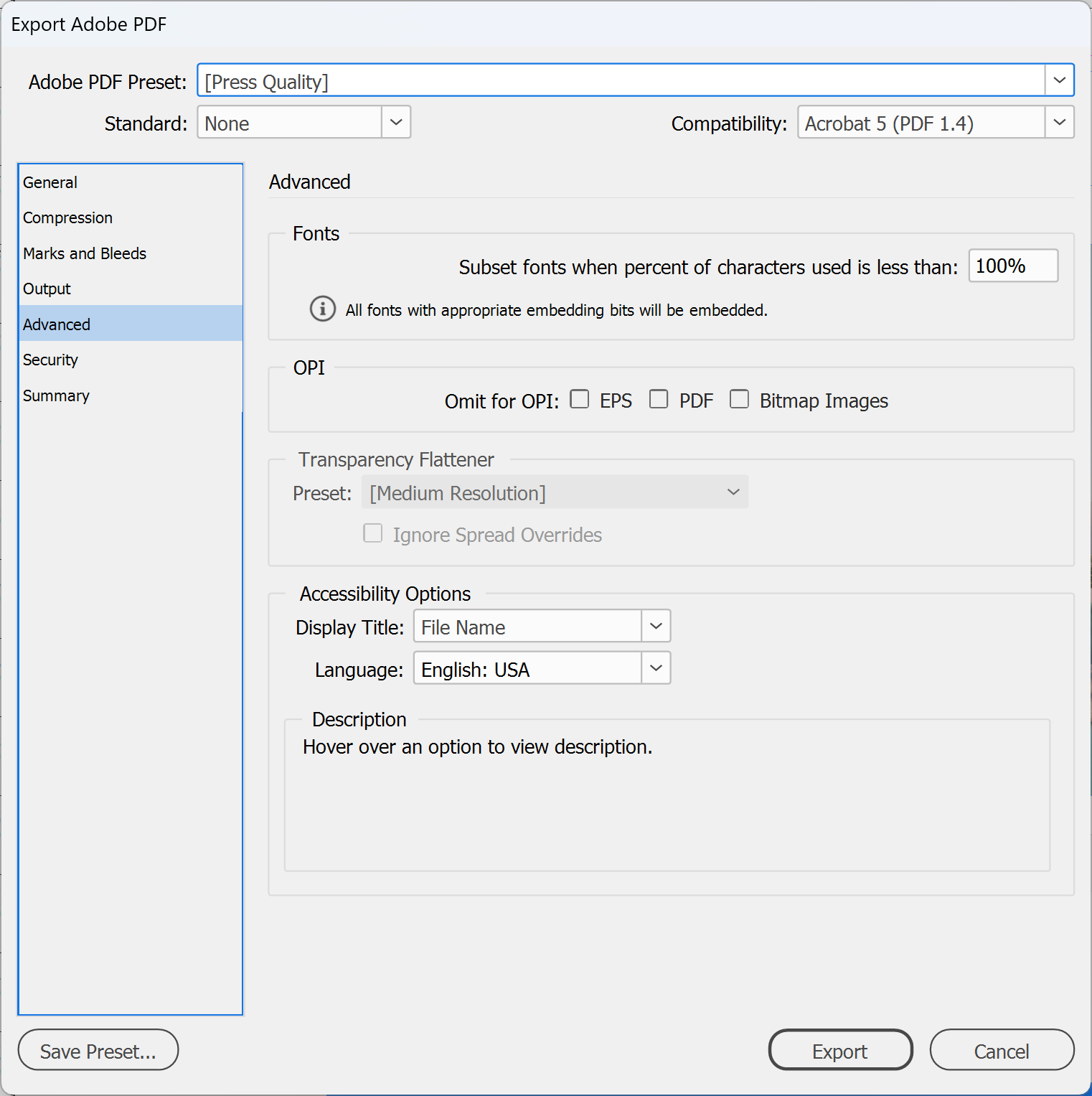
3. Select Advanced from the list on the left and find Subset fonts when percent of characters used is less than. Leave it as it is, or enter 0 to embed every font in full. That makes the file bigger.
4. Click Export (Windows) or Save (macOS).
Steps to embed fonts when you save a PDF from Illustrator
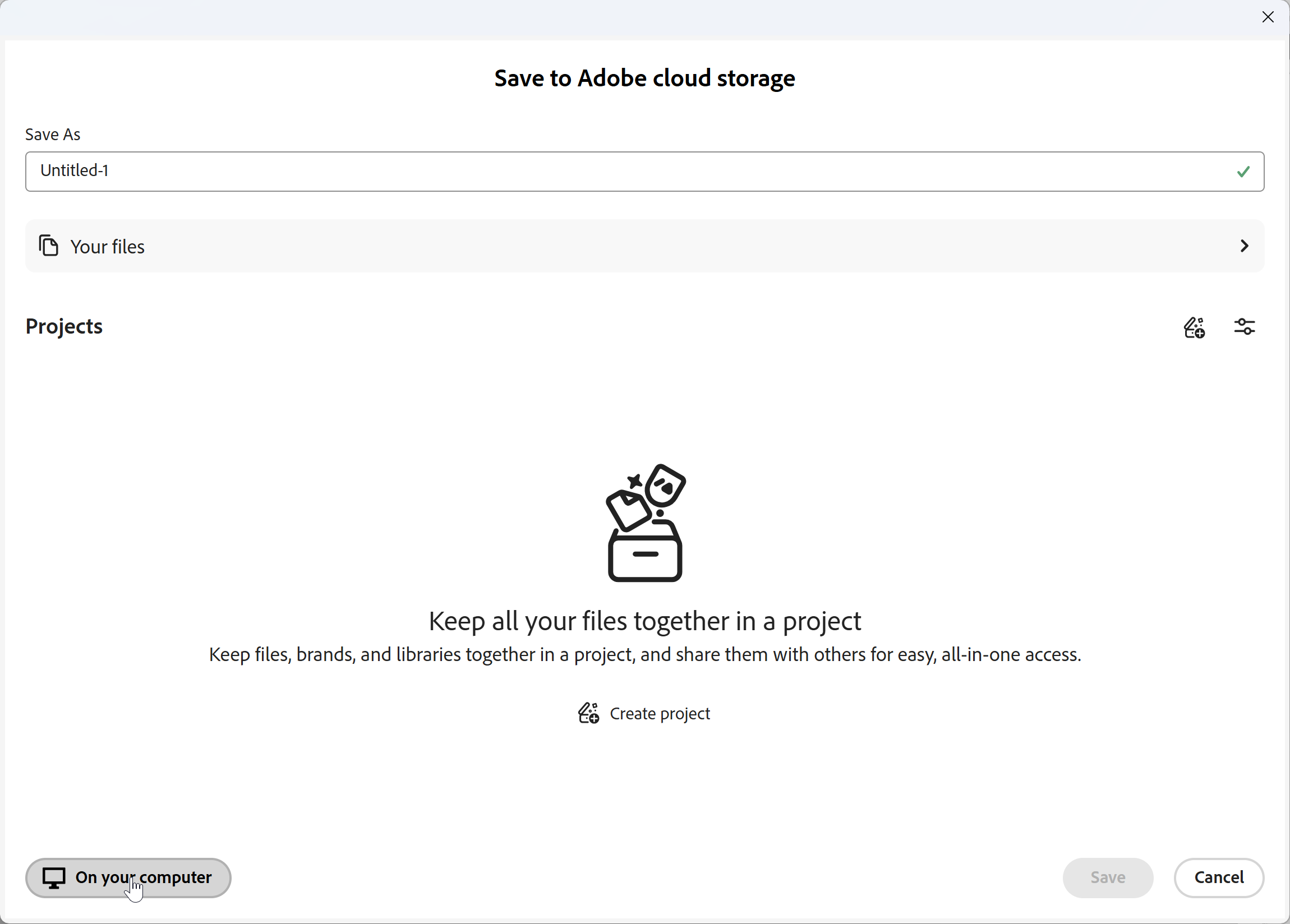
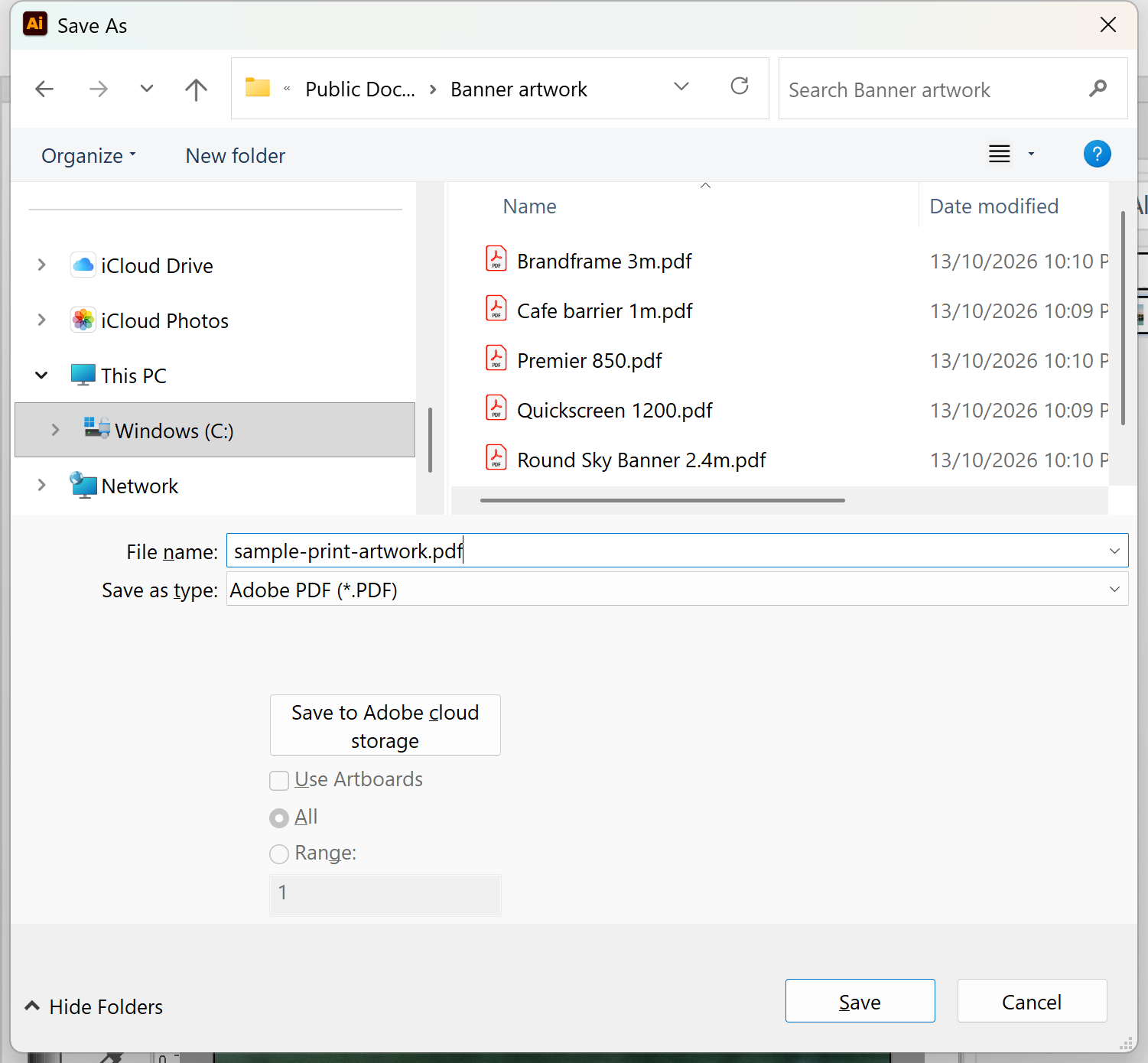
1. In the main menu, go to File > Save As. If the Save to Adobe cloud storage dialog box appears, select On your computer.
2. In the Save As dialog box, type the file name, select Adobe PDF (*.PDF) in the Save as type drop-down, then click Save.
3. In the Save Adobe PDF dialog box, choose [Press Quality] from the Adobe PDF Preset menu. Press Quality embeds subsets of all fonts.
Note: In the General panel, untick Preserve Illustrator Editing Capabilities if it's ticked. It isn't needed for print, and unticking it can cut the file size significantly. The preset then shows as [Press Quality] (Modified).
4. Select Advanced from the list on the left. Subset fonts when percent of characters used is less than sets when Illustrator embeds the whole font rather than just the characters you used. Either way, the font is embedded.
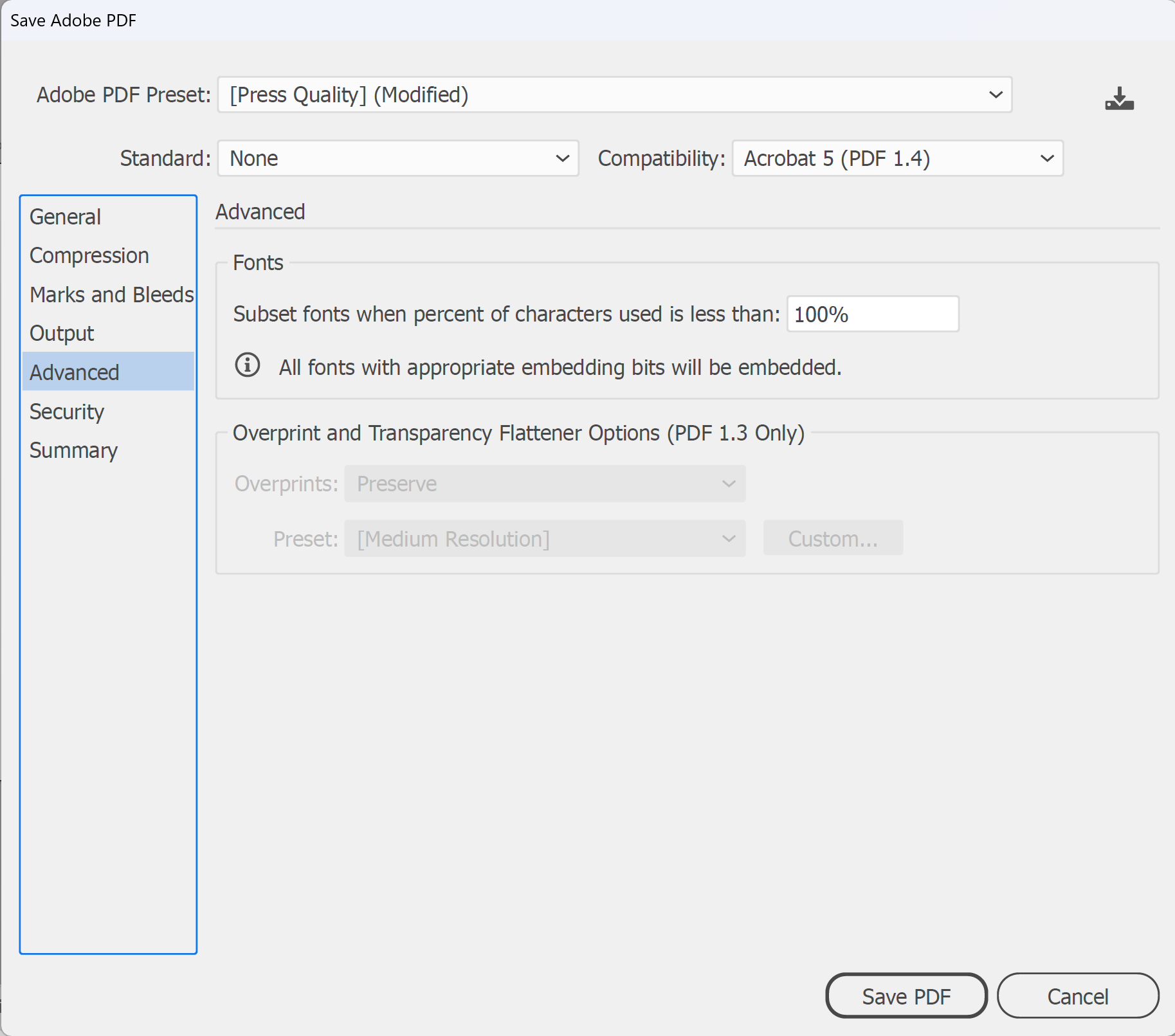
5. Click Save PDF.
Steps to check the fonts are embedded
1. Open the PDF in Acrobat. Select Document Properties from the Menu (Windows) or from File (macOS).
2. Select the Fonts tab. Fonts embedded as a subset show (Embedded Subset) after their name. Any font that doesn't say it's embedded isn't in the file.
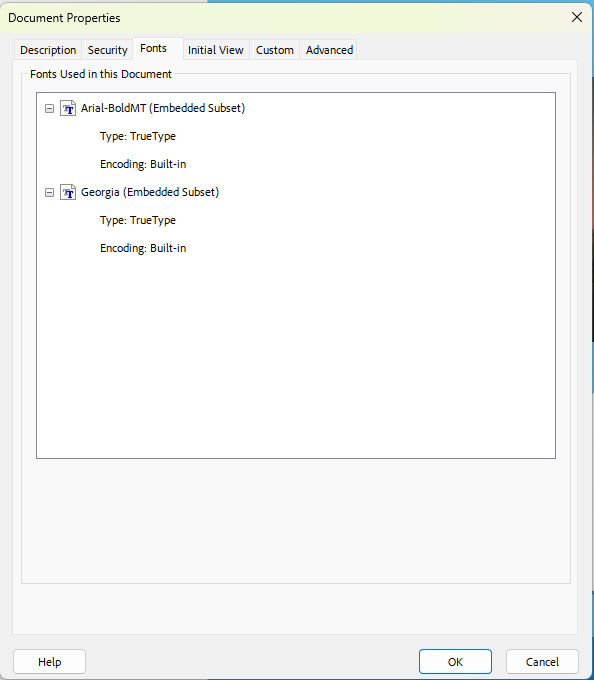
3. If a font isn't embedded, go back to your InDesign or Illustrator file and check the font is installed and active, then export the PDF again.
IMPORTANT: A font can only be embedded if the font maker allows it. If a font still won't embed, its licence may not permit it. Outline that text instead, and check your licence before you share font files with anyone.
4. Finally, check your file against our artwork specifications and email it to sales@displays2go.com.au, with your order or job number in the subject line if you have one. See sending artwork for large files, and you're done!
Need some help?
We're here for you
If you're needing some advice or just a helping hand, please get in touch with our team, by clicking this button. Complete the enquiry form and one of our specialists will call you back as soon as we can.