

YOUR CART IS CURRENTLY EMPTY
How to flatten a transparency in InDesign, Illustrator or Photoshop?
What is transparency in artwork?
Transparency in artwork is an effect where any object or image is not set at 100% opacity. Common effects that apply transparency are any stylising effects like shadows, glows and feathering. And of course applying ‘transparency’ to any object or image from the menu.
What is flattening?
The process of converting complex artwork into vector-based and rasterised areas is referred to as ‘flattening.’ Examples of objects that may require flattening include: text, gradients, spot colours, vectors, images and overprinting.
Why is flattening necessary?
Flattening of transparencies is vitally important. Processing artwork becomes particularly complex when transparent objects and/or images overlap. If different colour modes have been used, unpredictable results can occur. For example, if an image is RGB and has overlapping graphics set in CMYK.
Flattening helps the final print output match what you see on your screen. Part of the print process involves converting the file information into ‘printer language.’ It is during this process that some printing software may interpret the file differently than intended, producing unexpected and unwanted results. Flattening the file properly greatly reduces the risk of this type of error, but always check the flattened PDF before you send it.
Flattening of files is best done in Acrobat Pro, even when the artwork has been created in InDesign, Illustrator or Photoshop.
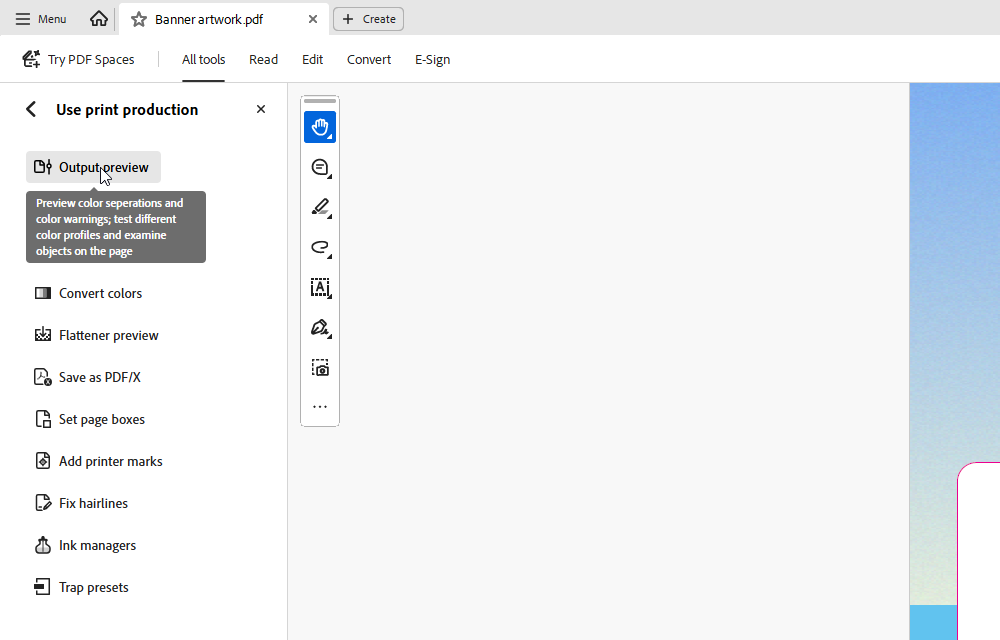
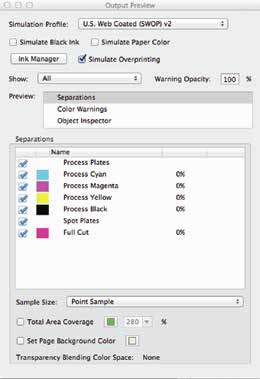
1. Open the file in Acrobat Pro. Initially we need to check what Colour Separations are contained in the file. To preview the separations, open the Output Preview dialog box:
In Acrobat Pro, open All tools, then select Use print production > Output preview. From the Preview menu, choose Separations.
NOTE: The location of Print Production varies with the version of Acrobat. Older versions had it under View > Tools. In current Acrobat Pro it is listed under All tools as Use print production.
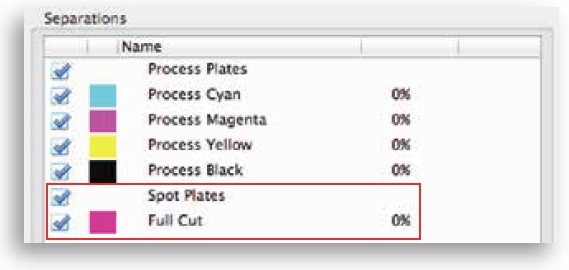
2. Check for Spot Colours
IMPORTANT: If ordinary artwork spot colours are present, go back to the source file and convert them to CMYK Process Colour. Keep the agreed technical spot colours described below.
For instructions on how to do this, see our guide to converting spot colours to CMYK
Note: Keep agreed dieline, cut/fold and white ink spot colours. The Full Cut plate pictured is a technical plate to retain, not convert. Follow the template and our print team's instructions so technical lines do not print as artwork (see our dieline guide).
Repeat step 1 as many times as necessary to ensure no ordinary artwork spot colours remain. Then the file is ready to be flattened using the following steps:
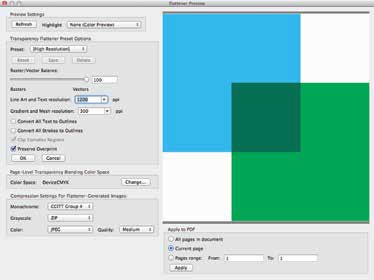
3. Open the Flattener Preview dialog box:
In All tools, select Use print production > Flattener preview.
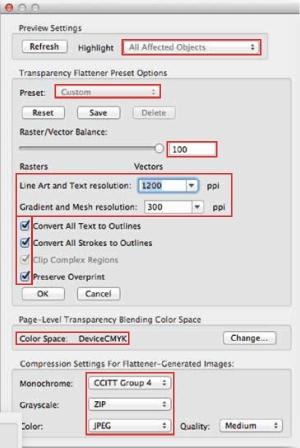
4. Match the settings to the screenshot. The important settings are outlined in red: Raster/Vector Balance 100, Line Art and Text Resolution 1200 ppi, Gradient and Mesh Resolution 300 ppi, Convert All Text to Outlines, Convert All Strokes to Outlines and Preserve Overprint ticked, and Color Space showing DeviceCMYK.
Note: Adobe recommends 600 to 1200 ppi for line art and text, and 150 to 300 ppi for gradients and mesh. These example settings assume the artwork will not be enlarged afterwards. For reduced-scale artwork, ask us about the resolution needed at finished print size before flattening.
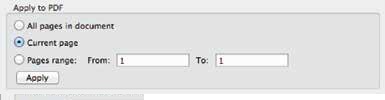
5. Under Apply to PDF, choose All pages in document (or set a page range), then click Apply.
Check the PDF before you send it, to make sure no elements dropped out in the flattening process.
6. Save the flattened file under a new name, and you're done!
IMPORTANT: Flattening can't be undone once the file is saved, so keep your original, unflattened file.
Need some help?
We're here for you
If you're needing some advice or just a helping hand, please get in touch with our team, by clicking this button. Complete the enquiry form and one of our specialists will call you back as soon as we can.